Which app controls your light?
The light is powered, Bluetooth is on, and the device list in the app stays empty. Most often the light is fine and the phone is running the wrong app. We build the controllers inside these lights and we write the apps that drive them: each app speaks one control protocol, and an app that cannot speak your controller's never lists it, however long it scans.
Key takeaways
- Five main apps, one protocol each, none interchangeable. Match the app to the controller, not to the shop or the brand on the box.
- Strip test: the whole run one colour at a time is LotusLamp X; colours moving along the strip is Magic Lantern.
- Single-colour or tunable-white strip, Christmas string, wired curtain light: Lotus Lantern.
- Several fittings that must act as one room, or a ceiling fan light: iMeshting.
- A card, QR code or box naming an app overrides every rule here. Every app we publish is free.
If the box names an app, use that one
Look at the packaging, the leaflet and any printed card before anything else. A QR code or a named app there is the build matched to your controller, and it beats every rule below. On some models pairing is easier with the light still in the box, so do this before you unpack.
The name may not be one of the five main apps. Alongside them we publish LotusPixel, LotusScreen, LotusLamp CCT, LotusLamp Echo, LotusCloud, IoTLite, LIDU, BBT Lights, PixelsPlay and RgbPlay for particular product lines, and white-label builds for partner brands that ship our controllers under their own name. An app with an unfamiliar name can still be ours underneath.
Nothing named at all? Work through the three questions below, or jump to the full reference table if you already know the product category.
Step 1: what kind of light is it?
The physical form settles most cases on its own.
| What you have | App |
|---|---|
| A reel of LED strip, single colour or warm/cool white | Lotus Lantern |
| A reel of LED strip, full-colour, whole strip changes colour together | LotusLamp X |
| A reel of LED strip where colours chase or flow along the strip | Magic Lantern |
| Curtain light, wireless | Magic Lantern |
| Curtain light, wired | Lotus Lantern |
| Christmas string or tree light | Lotus Lantern |
| Firework light (central hub with radial bars) | Magic Lantern |
| Ceiling fan light or mains-powered fixture | iMeshting |
| Car interior or exterior RGB light | LotusLamp X |
| Several lights that must run in sync across a room | iMeshting |
Festive strings are the product line where people most often download the wrong app: a string that changes colour looks like a job for a colour app, but the Christmas strings in the table above pair with Lotus Lantern.
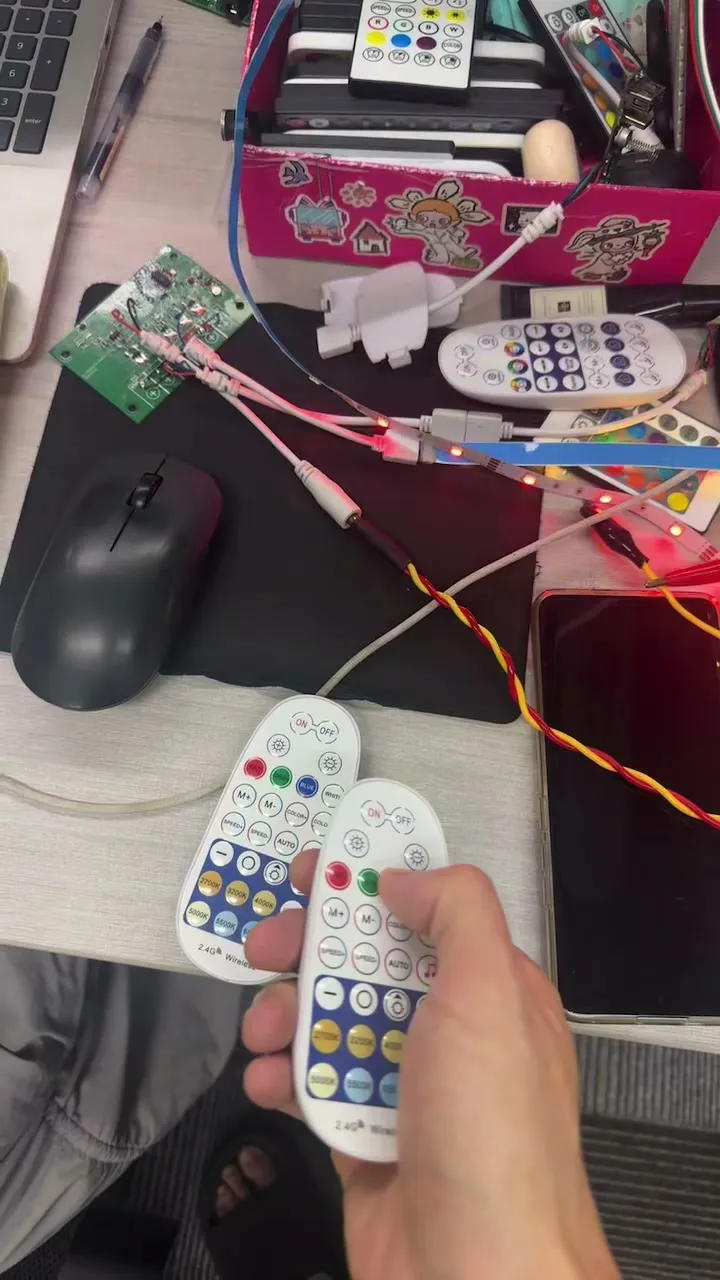
Step 2: if it is a strip, does colour move along it?
This is the distinction between our two colour apps, and it is the one customers get wrong most often. Power the strip up on whatever mode it ships with and watch it from across the room for ten seconds.
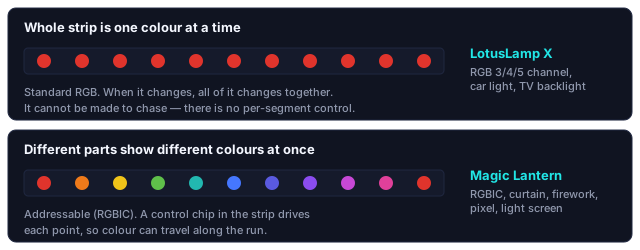
The whole strip is one colour at a time
Every LED shows the same colour. When it changes, all of it changes together. This is a standard RGB strip, 3, 4 or 5 channel.
Use LotusLamp X
Different parts of the strip show different colours at the same time
A rainbow spread along the strip, or a block of colour travelling from one end to the other. That needs a control chip built into the strip itself, which is what we call RGBIC.
Use Magic Lantern
An RGB strip cannot be made to chase. If your strip shows one colour at a time, no app and no setting will produce a running rainbow. All its LEDs share the same three channels, so there is nothing to address. This is a hardware limit, not a missing feature.
Once the right colour app is connected, two settings live in its settings pop-up rather than on the main screen: Pixels, the number of addressable points on an RGBIC strip, and Modify Pin Sequence, for when red comes out green.
If it is a bulb, there is no controller to identify
A bulb is the one category with no separate controller. The control electronics sit inside the lamp, the phone talks to the bulb over Bluetooth directly, and there is no data line, no line sequence and no chain order to get wrong. Almost the whole class of problems covered in wrong colours and line sequence cannot happen to a bulb.
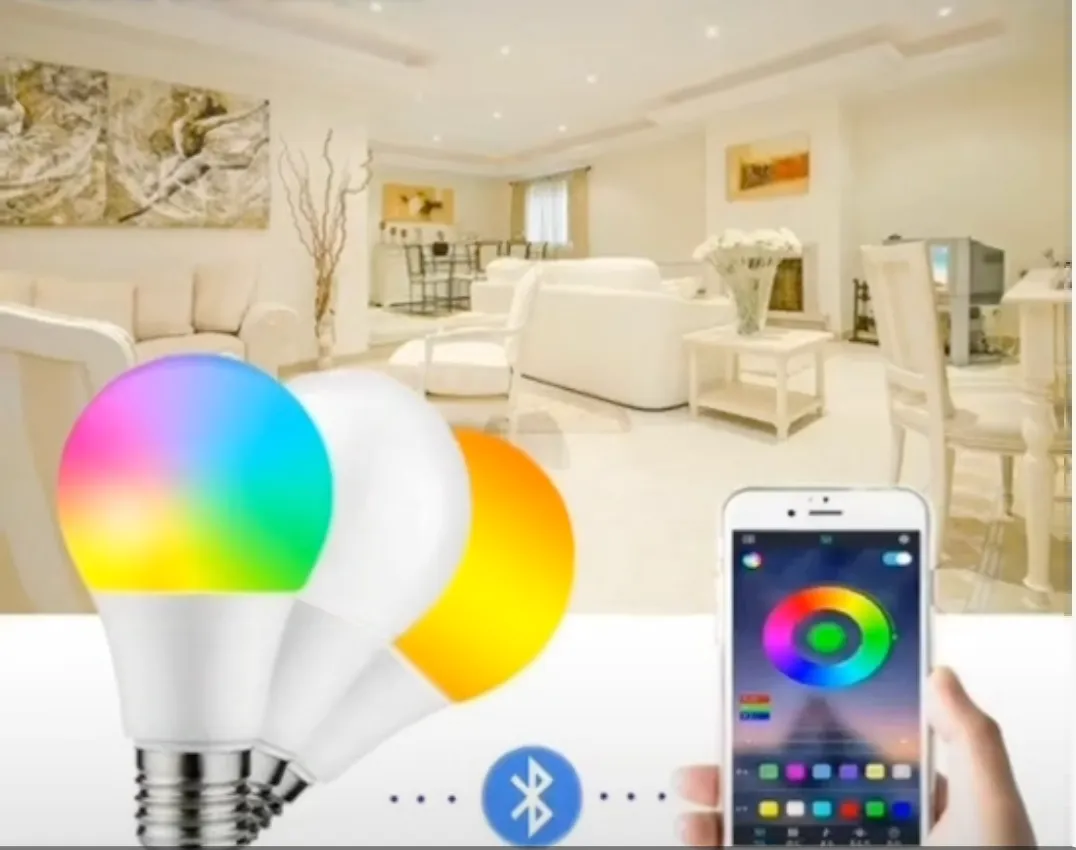
What you trade for that simplicity is range and count. Bluetooth reaches a room, not a house, and each bulb is its own device: twelve bulbs are twelve pairings, whereas twelve metres of strip on one controller is a single one. That is what Step 3 is about, and it matters more for bulbs than for anything else on this page.
If a bulb shipped with a physical remote, the remote works independently of the app and keeps working if the pairing is lost. Press it before you blame the software: it is the quickest way to confirm the bulb is alive.
Step 3: how many lights are you controlling?
One light, or a handful you are happy to control one at a time, needs nothing special. Stay with the app from Step 1 or 2.
Several fixtures that should behave as one installation, a whole room of ceiling lights or lighting that responds as a group, want mesh networking instead of point-to-point Bluetooth. Adding a light to iMeshting takes one extra step, choosing the device type and the room it belongs to; that step is what makes "all the lights in the living room" a single thing to act on later. Ceiling fan lights run on it for the same reason, and the wall switch has to stay on for it to work: see why the wall switch breaks smart control.
Use iMeshting for grouped, room-based and multi-fixture control, including ceiling fan lights and offline voice control.
The five main apps
| App | Built for | Categories it covers |
|---|---|---|
 Lotus Lantern Lotus Lantern |
Single-colour, tunable-white and 3-channel RGB strips, plus most decorative strings | 18 |
 LotusLamp X LotusLamp X |
4- and 5-channel full-colour RGB strips, car lighting, TV backlight, dedicated drivers | 8 |
 Magic Lantern Magic Lantern |
Addressable RGBIC strips and pixel-based decorative lights | 12 |
 iMeshting iMeshting |
Mesh networking, room grouping, ceiling fan lights, offline voice | 1 + multi-device installations |
 LightsPlay LightsPlay |
Entertainment-led effects and music interaction | 1 |
Each app's first connection looks slightly different: some scan as soon as they open, others have an explicit add-device step. The flow for each of the five is shown in pairing a light for the first time.
Full reference: all 40 product categories
The complete mapping between the product categories we manufacture and the app that controls each one.
Lotus Lantern
| Category | Structure |
|---|---|
| 1 Channel | 1 output / mono white or warm-white strip |
| 2 Channel | 2 outputs / tunable-white (CCT) strip |
| 3-Channel RGB | Red + green + blue |
| Single-Color Lighting | Single-colour output / functional lighting |
| 2-Wire Dual-White Lighting | 2-wire dual-white / tunable |
| 3-Wire Dual-White Lighting | 3-wire dual-white / stable dimming |
| 2-Wire Copper Light | 2-wire structure / decorative string |
| 2-Wire 8-Mode Christmas Light | 2-wire / 8 modes |
| Christmas Tree Light | Festive string / tree decor |
| Curtain Light — Wired | Wired structure / fixed installation |
| Curtain — Wired Fast | Wired fast-install / stable output |
| Camping Light | Portable lighting / outdoor use |
| Eave Light | Outdoor outline / facade lighting |
| Star Light | Galaxy and aurora projection / bedroom and living-room ambience |
| Ceiling Fan Light | Lighting + fan / indoor use |
| Stair Light | Step lighting / guidance function |
| Aquarium Light | Aquatic lighting / display illumination |
| Cabinet Light | Under-cabinet lighting / task use |
LotusLamp X
| Category | Structure |
|---|---|
| 4-Channel RGB | Red + green + blue + white, or red + green + blue + yellow |
| 5-Channel RGB | Red + green + blue + white + yellow |
| Synchronized RGB | Synchronised control / multi-device linking |
| RGB Car Light | Automotive RGB / multi-mode |
| TV Backlight | Backlight strip / entertainment ambience |
| 2-Channel Water Ripple Light | 2-channel ripple / dedicated control |
| 4-Channel Water Ripple Light | 4-channel ripple / dedicated control |
| Stepper Motor | Stepper drive / precision control |
Magic Lantern
| Category | Structure |
|---|---|
| 3-Channel RGBIC | Red + green + blue; each LED controlled independently |
| 4-Channel RGBIC | RGBIC + white or warm light; independently controlled multicolour LEDs form a full ring that lights up together with an additional ring of fixed white or warm light |
| 5-Channel RGBIC | RGBIC + tunable white; independently controlled multicolour LEDs form a full ring that stays lit alongside an additional lighting ring with an adjustable warm and cool white ratio |
| Multi-Output RGBIC | One-to-many / synchronised RGBIC strips |
| RGBIC + RGB | Hybrid colour / RGBIC + RGB |
| 2-Wire Pixel Light | 2-wire pixel / addressable effects |
| Curtain Light | Curtain structure / decorative modes |
| Curtain Light — Fast | Fast refresh / curtain structure |
| Curtain Light — Linked Screen | Linked-screen / multi-panel sync |
| Curtain — Linked Screen Fast | Fast linking / screen sync |
| Firework Light | Central hub + radial bars / firework form |
| Firework + Flagpole Light | Radial + pole structure / outdoor decor |
iMeshting
| Category | Structure |
|---|---|
| Broadcast RGB Sync | Broadcast sync / synchronised control of multiple RGB strips |
LightsPlay
| Category | Structure |
|---|---|
| Running Water Light | Flow mode / dynamic outline |
Every app we publish is free
There is no paid tier, no subscription and no fee to open any feature. If an app asks you to pay to control your lights, it is not ours, whatever it is called. Check the developer name on the store listing before installing.
Right app, still not connecting?
With the right app installed, an empty device list nearly always comes down to one of three things.
| What happens | Usual cause | Do this |
|---|---|---|
| List stays empty, no error | Bluetooth or nearby-devices permission denied | Grant it in the phone's app settings, not inside the app |
| Light appears, then vanishes | Another phone that paired before has reclaimed it; most of our controllers accept one connection at a time | Close the app on the other phone |
| Connects, then drops within seconds | Too far for the first handshake | Pair within a metre or two, then move away |
The full failure table, and what a light that connects but does not respond is telling you, is in pairing a light for the first time.
Questions about a specific light of ours? Contact us.