Your LED strip shows the wrong colours: fix the channel order in the app
You ask for red and get green. Yellow comes out cyan. White is the only thing that looks right. Nothing is broken: the strip and the controller disagree about which wire is which, and on our lights you can fix it in the app in under a minute.
Key takeaways
- Set pure red. Green or blue back means channel order; nothing lit means that channel is not being driven.
- White looks right whatever the order, which is why the fault hides for weeks.
- Fix it under Modify Pin Sequence in the settings pop-up of Lotus Lantern and Magic Lantern. It is stored on the controller.
- No pin-sequence setting in your app: swap the two offending wires at the connector.
- Chase effects stopping early or running off the end are the Pixels setting, not colour order.
Confirm it in ten seconds
Set the strip to pure red in the app, full saturation, not a pastel, and look at what comes out.
| You asked for red and got… | What it means |
|---|---|
| Red | Channel order is correct. Your problem is something else. |
| Green or blue | Channel order is swapped. This page is for you. |
| Nothing, but green and blue work | Not an ordering problem: that channel is not being driven. Check the connector. |
| White | All three channels are on together. Usually a connector seated wrong, not ordering. |
Then check white. If white looks correct but every individual colour is wrong, that is close to conclusive. White drives all three channels equally, so it looks right whatever order they are in, which is why people live with this for weeks while "the light works fine".
What is actually happening
A standard RGB strip has four contacts: one shared supply and three colour channels. The controller drives those three in a fixed order.
The physical order of those pads is not standardised across the industry. Some strips are laid out with red in the second position; others put green there. Both are normal products. But if your controller drives position two as red while your strip has green wired to position two, every colour you request comes out permuted.
This is why the problem shows up most often when a strip and a controller come from different places: a replacement strip, a longer run bought separately, an extension from another brand. Two good components, mismatched conventions. On our RGB controller platform it is the commonest thing reported on a strip that was not the one in the box.
It is not a fault and it does not damage anything. The channels are electrically identical; only the labelling differs. Running a mismatched pair does no harm while you sort it out.
The fix, in the app
Rather than making you rewire the connector, our apps let you remap the channels in software. The setting is called Modify Pin Sequence. It is in the settings pop-up, not on the main control screen, which is why most people never find it.
It is available in Lotus Lantern and Magic Lantern. If you are not sure which app runs your light, which app controls your light maps all forty product categories.
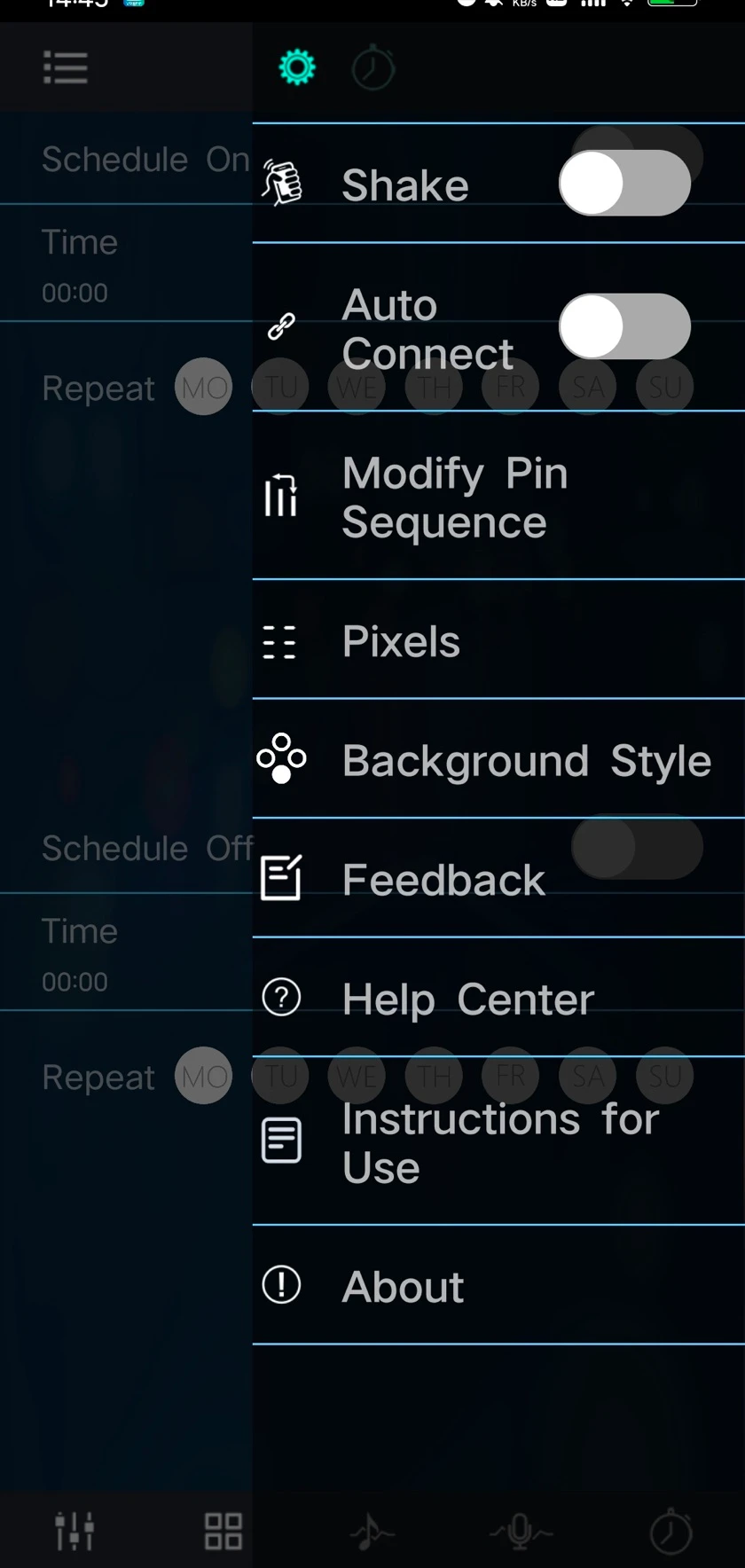
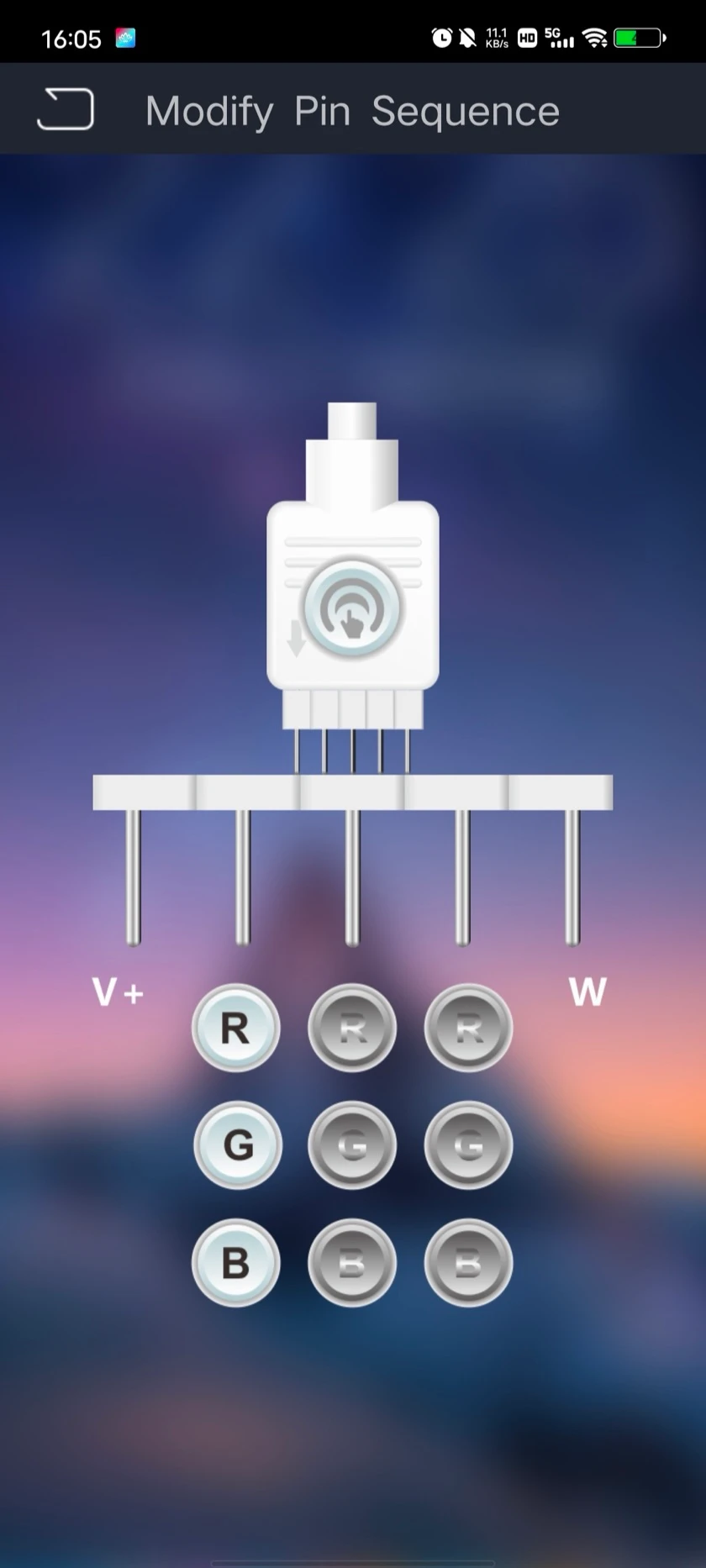
The drawing is the useful part. You are not picking an abstract preset like "GRB"; you are telling the controller which colour sits on which physical pin, in the same left-to-right order as the connector in your hand.
- Connect to the light as usual and confirm it responds to brightness. You need a live connection for the change to be saved to the controller.
- Open the settings pop-up from the control screen.
- Choose "Modify Pin Sequence".
- Assign each pin. Three signal pins, three colours, one selection each. The pin order on screen matches the order on the strip header, so work along the connector physically rather than guessing at a preset name.
- Save it. The setting is stored on the controller, not just in the phone. It survives closing the app and unplugging the light.
Work it out by watching rather than by reasoning about wiring: hold the strip on pure red, change the red channel setting, and look. When red produces red, move to green. Two or three attempts usually lands it, and there is no way to get it wrong permanently; you can keep changing it.
If your app has no pin-sequence setting
Not every app in the range includes it, because not every controller needs it. If the option is not in your settings pop-up, you have two choices.
Swap the wires. On a connector-terminated strip, reseat the two offending wires in the connector. On a soldered joint, unsolder and re-solder them the other way round. Note which two need swapping first: from the red test above, if red produces green then red and green are the pair.
Live with it, carefully. If the light spends its life running colour effects rather than specific named colours, a permuted channel order is largely invisible. Whites and warm tones still look correct. This is a legitimate choice for a decorative installation, though it will confuse the next person who works on it.
Chase effects look wrong: the Pixels setting
On addressable lighting, the same settings pop-up carries a second setting, listed as Pixels: the number of addressable points on the strip.
The controller needs that number to spread effects across the whole run. Set it too low and effects compress into the first section while the rest sits idle or lags. Set it too high and the effect appears to run off the end of the strip and disappear. On our pixel controller platform both the pixel count and the wire order are configurable for exactly this reason.
If your colours are correct but chase effects behave strangely, stopping early, running past the end, or squashed into one part of the run, check this setting before assuming the strip is faulty.
Faults that look similar and are not channel order
| What you see | What it is | Where to look |
|---|---|---|
| Part of the strip dark, the rest fine | A break in the run | The last lit LED and the joint after it |
| Correct at the controller end, shifting warm toward the far end | Voltage drop on a long run | Run length and supply; remapping will not help |
| Dim or washed-out colour everywhere | Underpowered supply | The power supply rating against the strip length |
| Chase effect squashed or running off the end | Pixels set wrong | The Pixels setting above |
Still wrong after remapping?
If you have set the pin sequence, saved it, and red still does not produce red, reconnect to the light and check the setting held. If it reverted, the save did not reach the controller, usually because the connection dropped mid-save. Reconnect with the light within a metre or two of the phone, the same distance first-time pairing asks for, and set it again.
If it holds but the colours are still wrong, tell us what you asked for and what came out, and we will work through it. Questions about a specific strip of ours? Contact us.