
iMeshting
Organize lighting and fan lights by room, adjust their controls, and configure offline voice on devices that support it.
Key takeaways
- iMeshting is the app for our mesh lighting and fan-light products: devices are grouped by room and several are controlled from one screen.
- Four device types are offered when a device is added: lighting, lighting with offline voice, fan light, and fan light with offline voice. Choose the one printed on the product card.
- Pair within five seconds of powering the device on. A flash or a beep confirms it.
- Offline voice is configured per device: active period, sensitivity and wake-up word are saved to the device, and voice then runs on the device itself.
- The Google Play and App Store listings are both free, with no unlock fees.
Where to get the app
Install iMeshting from Google Play on Android or from the App Store on iPhone and iPad. Both listings are free, with no paid tier and no unlock fee. Confirm the developer name and the icon before installing: a build with the same name that asks for payment to control a light is not ours.
The app is not interchangeable with Lotus Lantern, LotusLamp X or Magic Lantern: those drive individual controllers over Bluetooth, while iMeshting addresses a mesh of devices. A light built for one of them never appears in the iMeshting device list. If the product card names a different app, follow the card, or use which app controls your light.
Compatible devices
iMeshting is built for the mesh lighting and fan-light products that ship with it, in the four device types below. The type chosen when a device is added decides which control panel the app shows; the product card or the label on the controller states which type to choose.
| Device type | What the panel controls | Notes |
|---|---|---|
| Lighting | Power, white and yellow presets, 10% night level, colour auxiliary light, light countdown | Fittings with white and yellow channels, with or without a colour auxiliary light |
| Lighting + offline voice | The lighting panel plus the voice switch and voice configuration | Voice runs on the device once configured |
| Fan light | Light presets, fan speed, natural and sleep wind, oscillation, reverse, light and fan countdowns | Ceiling fans with an integrated light |
| Fan light + offline voice | The fan-light panel plus voice | As above, with voice configuration |
Every device is assigned to a room. The room panel switches all lights, or all fan lights, in that room at once, and the main power button switches everything the app knows about.
Start from the home screen
The main control screen is the default view when you first open iMeshting. Tap the add-device button to begin. The Main Control and Rooms tabs switch between control views.
The main power button switches all devices, including lights and fans, on or off. The menu button opens system settings.
Choose the device type
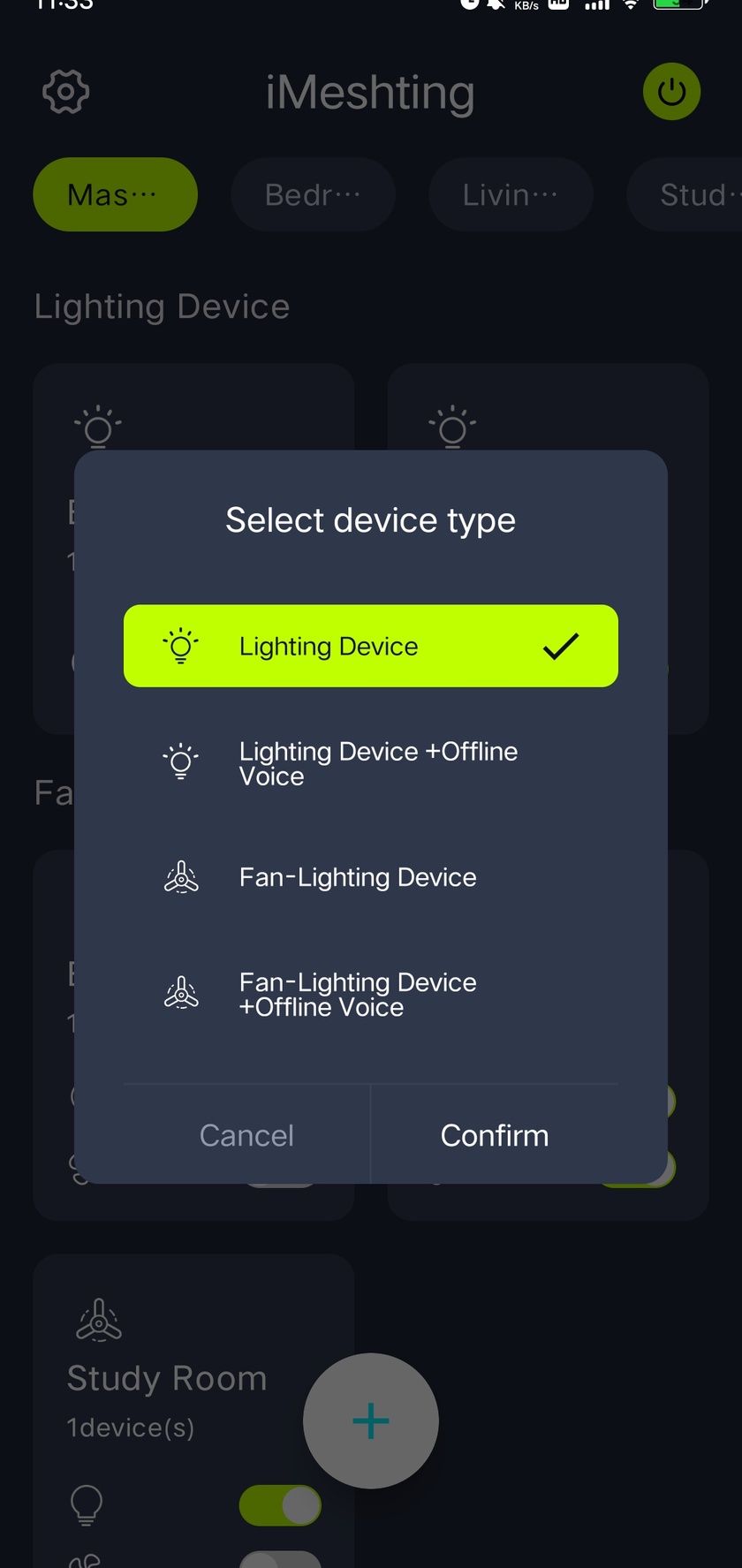
Adding a device opens the device-type dialog. Choose the appropriate type:
- Lighting
- Lighting + offline voice
- Fan light
- Fan light + offline voice
The lighting, fan and voice instructions below apply to their corresponding device types.
Name the device and assign its room
- Choose the device type, then enter a name in the device-name field.
- Select the room where the device is located. Use Add Room if you need a new room.
- After adding the device in the app, open its control panel to pair it with the physical light.
Pair within five seconds of powering on the device. Tap the pairing button during that window. A flash or beep confirms successful pairing. See Lighting and pairing or Fan-light controls for the relevant panel.
Use a device shortcut panel
After you add a lighting device to a room, its shortcut panel appears there. Use the power control to switch the light on or off, or tap the panel to open the detailed controls.
Long-press the panel to edit the device name or delete the entry. The add button lets you add more devices.
Manage rooms
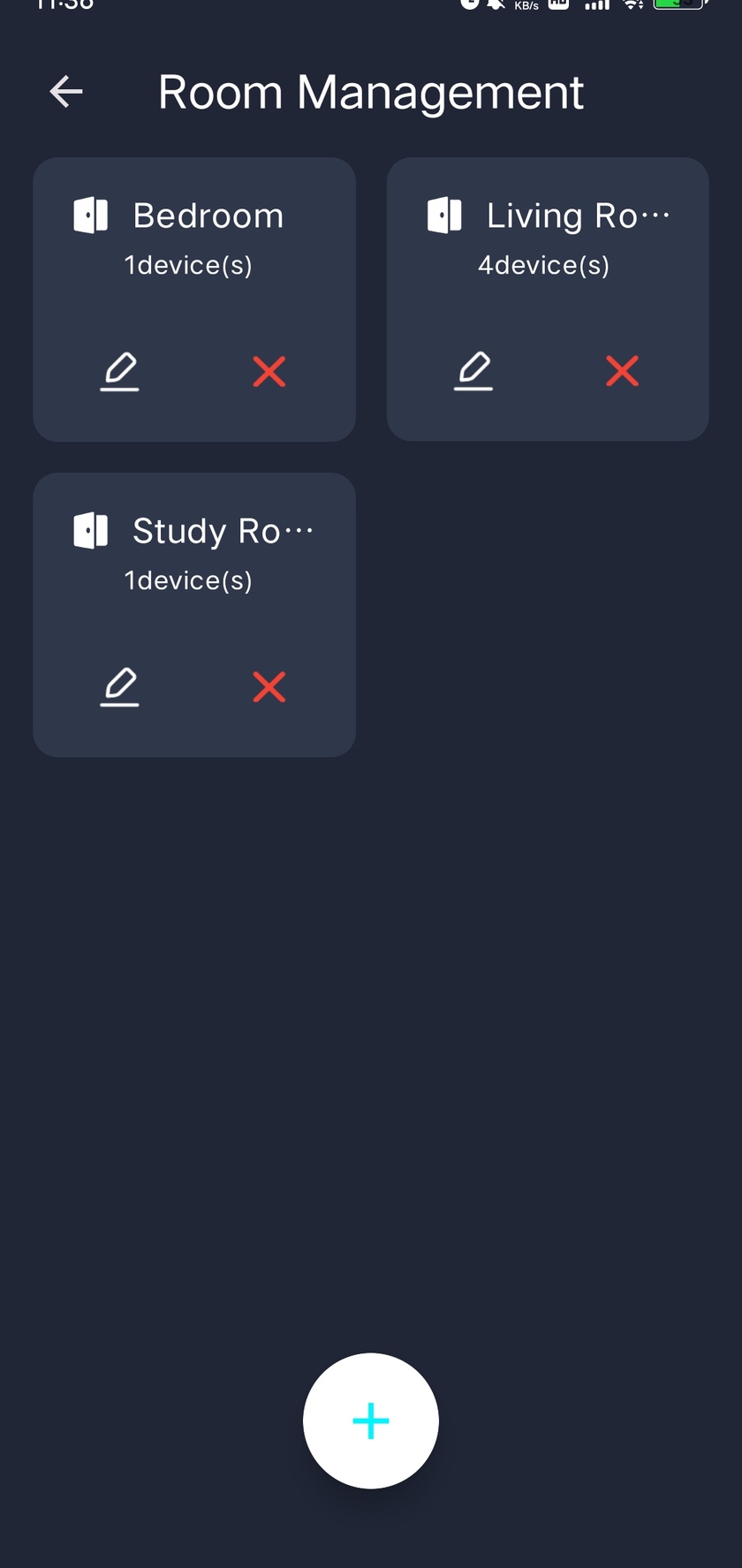
Open Room Management from the system menu to see all existing rooms. Tap Add to create another room. Use a room's rename control to change its name, or its delete control to remove the room.
Control lighting and pair a light
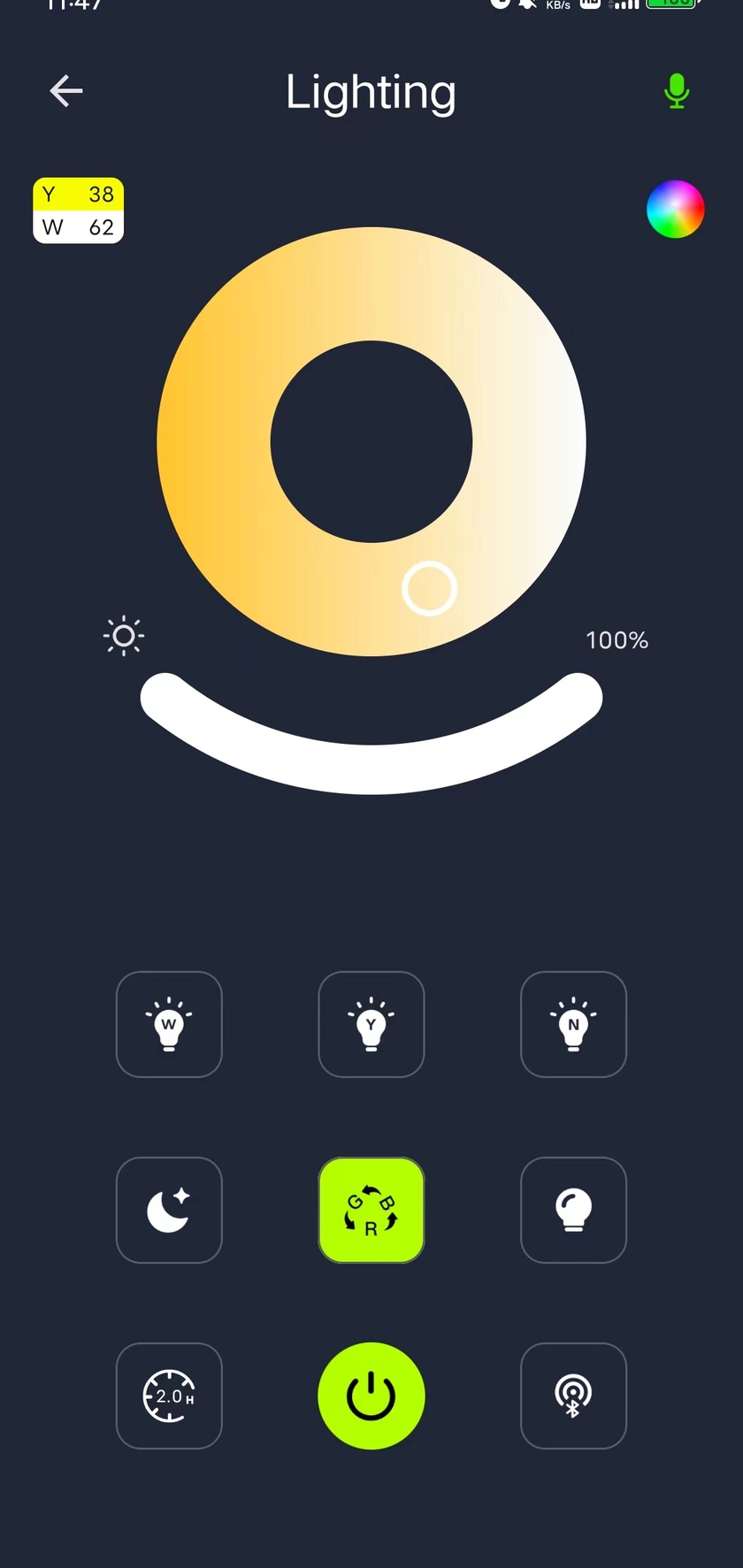
On the Lighting + Offline Voice panel, use the switch to turn the light on or off. The lighting presets provide these options:
- White: white light only, at maximum brightness.
- Yellow: yellow light only, at maximum brightness.
- White + yellow: both channels at maximum brightness.
- 10%: both white and yellow light at 10% of maximum brightness.
- Color auxiliary light: enable the color light and open its static colors or dynamic modes. A separate auxiliary-light button turns on the auxiliary light.
Pairing
Power on the light, then tap the pairing button within five seconds. If the device flashes or beeps, pairing has succeeded and the app can control it.
Light countdown
The light countdown turns the light off after the selected interval. Its default is two hours. Long-press the countdown button to customize the interval.
Offline voice
Tap the voice button to switch offline voice on or off. Long-press it to open voice configuration.
Configure offline voice
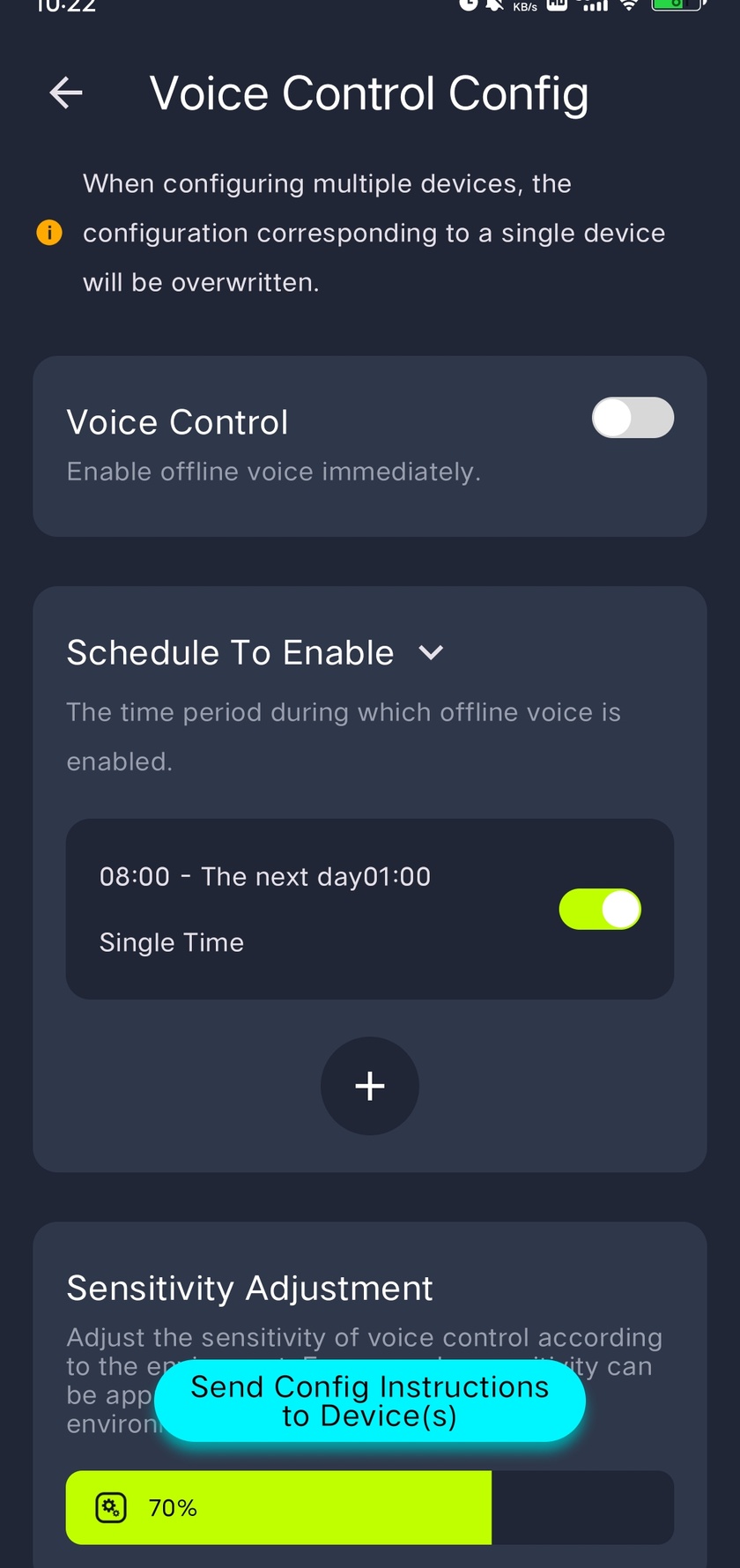
- Long-press the voice button, or choose a device through Offline Voice Configuration in the system menu.
- Choose to use offline voice immediately, or set the time period during which it should be active.
- Adjust voice sensitivity.
- Choose whether to use a wake-up word and which wake-up word to use.
- Save the configuration.
Choose static colors
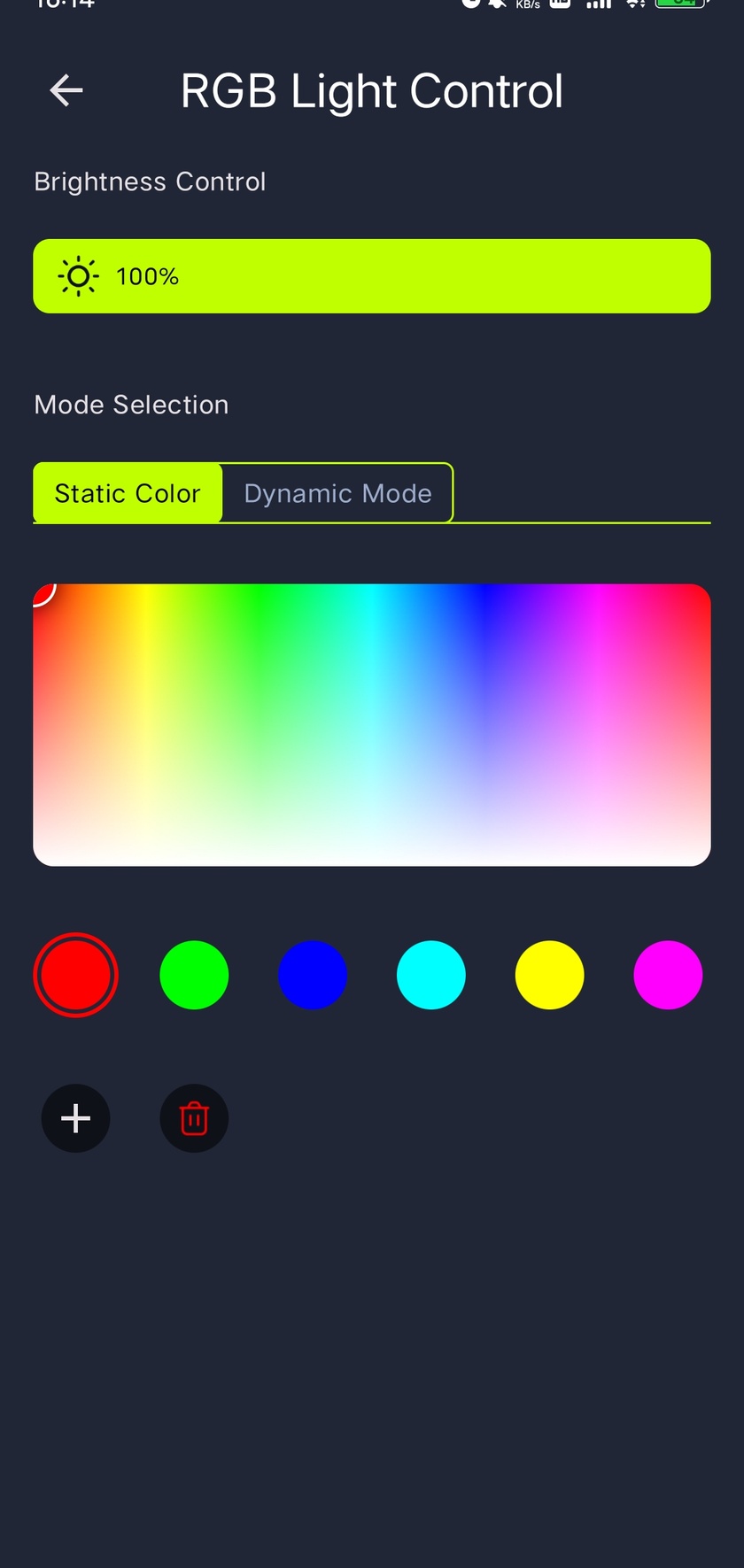
Open the color auxiliary light controls and select Static Color. Slide the brightness control to adjust the light level, and swipe the color selector to choose a color.
You can select a system default color, tap Add to add a color, or tap Remove to delete one. Use the tabs to switch between Static Color and Dynamic Mode.
Use built-in and custom modes
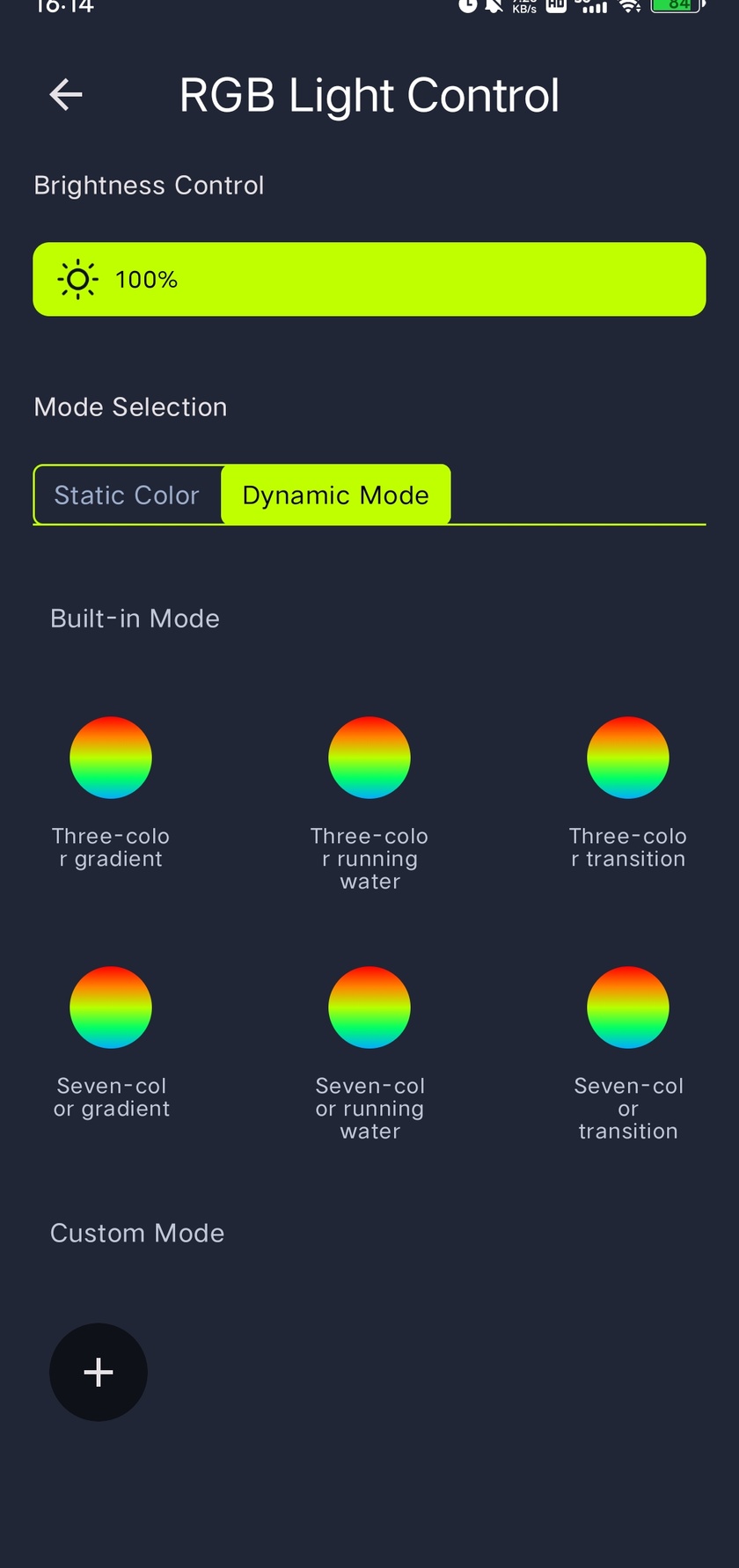
The Dynamic Mode screen contains Custom Mode and Built-in Mode sections. Choose a built-in effect, or configure a custom mode's name, effect, color, speed and brightness.
Slide the brightness control to adjust the light level.
Use fan-light shortcuts
A fan light added to a room has a shortcut panel for its light and fan switches. Tap the panel to open detailed controls, or long-press to rename or delete the device. Use the add button to add another device.
Adjust fan-light lighting and countdowns
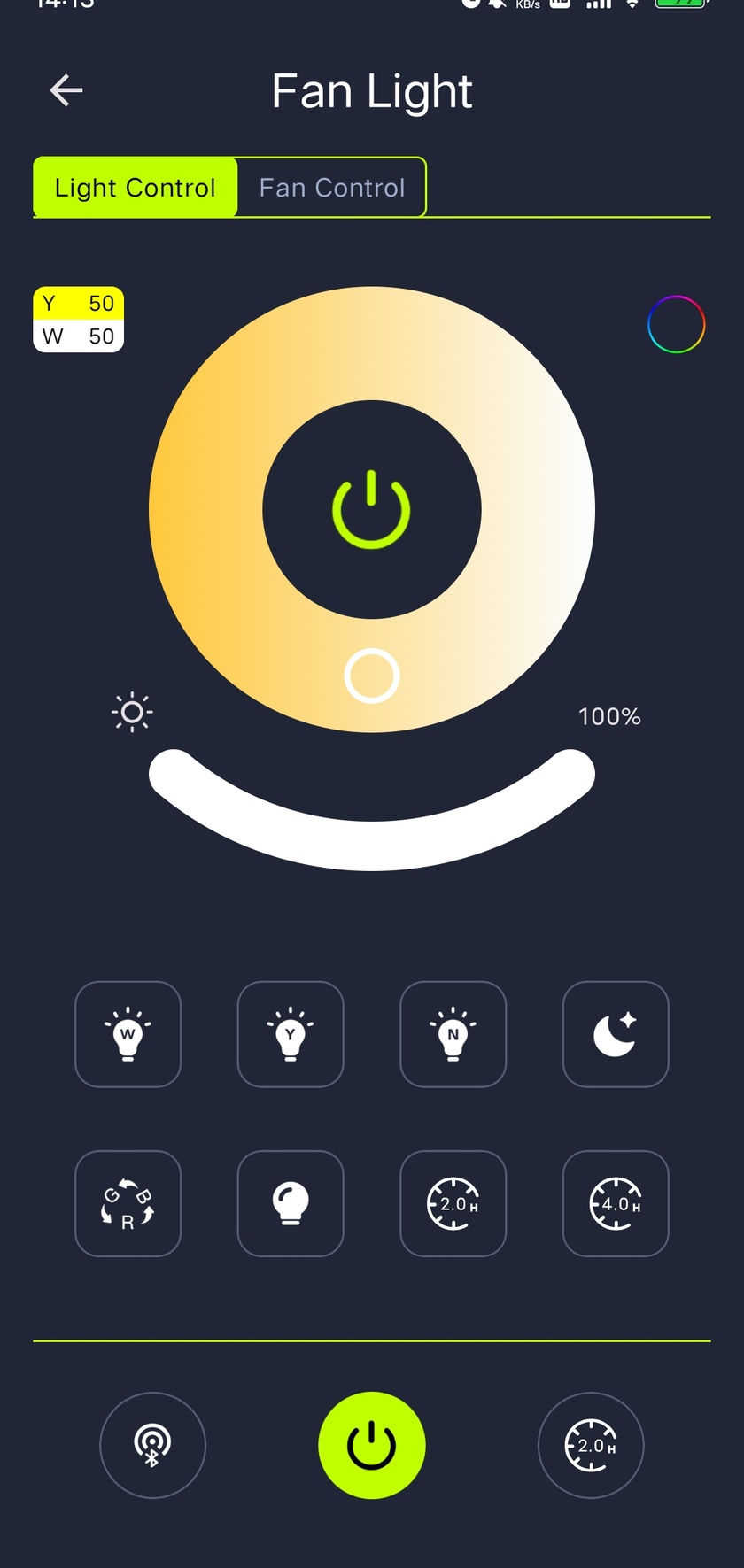
Switch between the Light Control and Fan Control tabs. In Light Control, slide the color-temperature ring to set the color temperature, tap its center button to turn the light on or off, and use the curved slider below it to adjust brightness.
Presets provide white only, yellow only, or white and yellow together at full brightness; the dim preset uses both channels at 10%. The color auxiliary-light control opens static colors and dynamic modes, and the auxiliary-light button switches on the auxiliary light.
Pair the physical device
After adding the device in the app, power on one or more target devices. Tap the pairing button at the bottom within five seconds of powering them on. The devices flash to confirm success; the app can then control the paired device or devices.
Light-only and combined countdowns
- The light countdown defaults to two hours. A four-hour countdown button is also provided; long-press either button to customize its interval.
- The main switch at the bottom controls both the light and the fan.
- The total countdown at the bottom turns both the light and fan off when it ends. Its button shows the countdown time; long-press to change it.
Adjust the fan
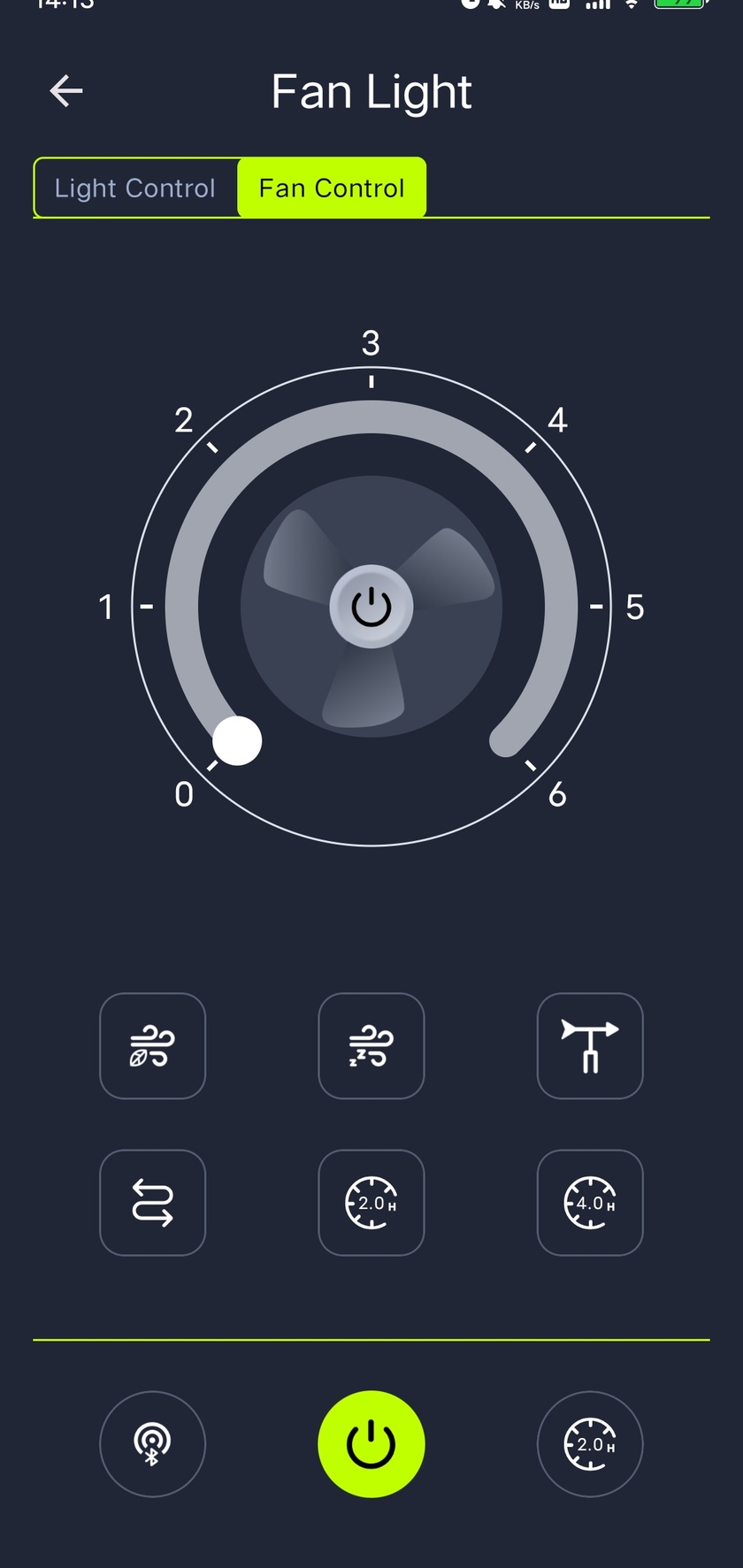
Open the Fan Control tab to turn the fan on or off and slide to adjust its speed.
- Natural wind: turn on natural-wind mode.
- Sleep wind: turn on sleep-wind mode.
- Oscillation: tap to start oscillating; tap again to stop at the current angle.
- Reverse: off by default for forward airflow. Turn it on to reverse the fan and draw air in.
The fan countdown defaults to two hours and turns the fan off when it ends. A four-hour countdown button is also provided. Long-press either countdown button to customize its interval; the button shows the countdown time.
Control devices by room
The main room panels show each room name and its device count. If a room contains multiple device types, each type has its own shortcut panel. Tap a panel for detailed controls.
Use the room light switch to turn off all lights in the room. The fan-light switch controls the lights and fans of all fan lights in that room. The add button adds more devices.
System menu
- Room Management: open the room list to add, rename or remove rooms.
- Language: choose a display language, including Chinese, English, German, French, Russian, Korean or Japanese.
- Theme: select the app theme.
- Offline Voice Configuration: choose the device whose voice settings you want to change.
- Instructions and FAQ: read usage guidance and answers to common questions.
- Feedback: submit comments and suggestions.
- User Agreement and Privacy Policy: view the app's terms and privacy information.
Privacy
iMeshting asks for Bluetooth permission to find and pair devices; on Android 6 to 11 the system routes that request through the location permission, and the app does not read your position. The app's own user agreement and privacy policy are in its system menu and on the store listings; the privacy policy on this site covers the web pages only.
Help Center
Open Help Center in the app for further assistance. For pairing and voice guidance on this site, use the links below.