App guide · Lotus Lantern Pro
LotusLamp X
LotusLamp X is the Bluetooth app for our 4- and 5-channel full-colour RGB controllers and the dedicated drivers around them: car lighting, TV backlight, water-ripple units and stepper motors. Each device has its own panel for colour, brightness, dynamic modes, scenes, three rhythm sources and a schedule that is stored on the controller; groups let several controllers act as one. The app is free.
Key takeaways
- LotusLamp X is the professional successor to Lotus Lantern: 4- and 5-channel RGB strips, car lighting, TV backlight, ripple units and stepper drivers, eight categories in all.
- Same title on Google Play and the App Store; free, no in-app purchases; the App Store build needs iOS 12 or later.
- Three rhythm sources: Device MIC keeps running without the phone; Phone MIC and Music need the app open on the rhythm screen.
- Schedules live on the controller. The app reads them on connection and keeps no local copy.
- Wires Order and Pixel Setting are in Edit Device Information, not on the control panel.
Where to get the app
Install LotusLamp X from Google Play on Android or from the App Store on iPhone and iPad. The title is LotusLamp X on both stores; the App Store build requires iOS 12 or later. Both listings show the app as free, and Google Play lists no in-app purchases and no advertising. An app that asks for payment before it will control a light is not ours, whatever its name.
The store descriptions present LotusLamp X as the professional version of LotusLanternX, with RGB strips, RGBIC strips, bulbs and in-vehicle RGB lights in scope, and three ways to follow sound: a local music file on the phone, the phone's microphone, or the microphone on the device. The App Store listing declares more than thirty interface languages, which is why a Language Settings entry exists in the app.
Compatible lights and controllers
Within our own catalogue, LotusLamp X is assigned the eight product categories in the table, all driven over Bluetooth Low Energy directly from the phone with no router, account or cloud step. The 4- and 5-channel strips add a white or yellow channel to red, green and blue, which is what separates them from the 3-channel strips on Lotus Lantern; the whole run still changes colour together. The interface captures in the sections that follow were made with a MELK-OA10 controller, which the app lists under 3-RGB Magic Strip/Light. A card, QR code or box that names an app overrides the table, and the complete 40-category map is in which app controls your light.
| Category | Control type | Notes |
|---|---|---|
| 4-Channel RGB | 4 outputs: RGB + white, or RGB + yellow | Whole run changes colour together |
| 5-Channel RGB | 5 outputs: RGB + white + yellow | Whole run changes colour together |
| Synchronized RGB | Synchronised control | Multi-device linking |
| RGB Car Light | Automotive RGB | Multi-mode interior and exterior lighting |
| TV Backlight | Backlight strip | Entertainment ambience; sizing in TV backlight sizing |
| 2-Channel Water Ripple Light | 2-channel ripple | Dedicated control |
| 4-Channel Water Ripple Light | 4-channel ripple | Dedicated control |
| Stepper Motor | Stepper drive | Precision control |
Connect and manage devices
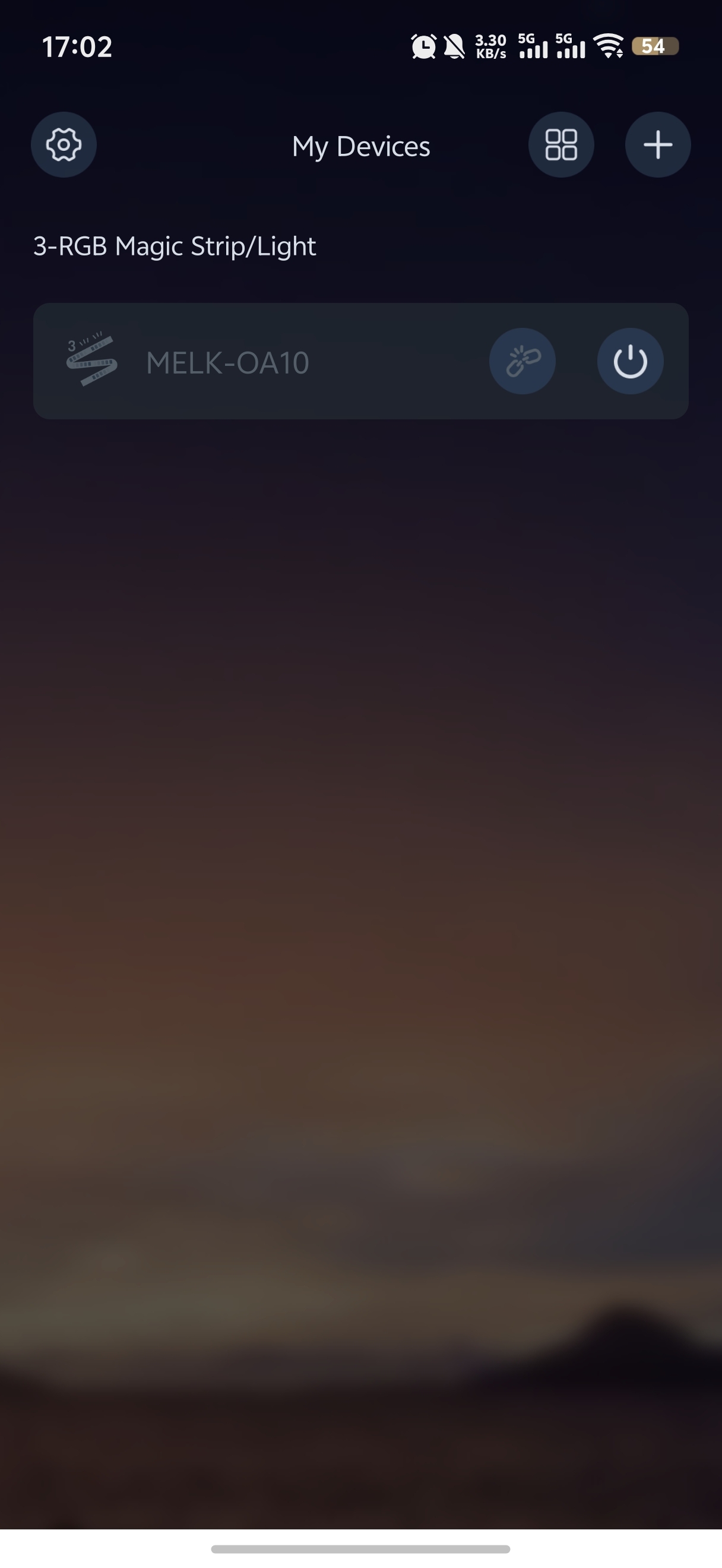
My Devices is the home screen. Controllers are grouped under a heading for their type, and each card carries the device icon, its name, a link icon for the connection and a power icon. The gear at the top left opens app settings, the grid control switches between list and grid layouts, and the plus control adds a device, a group or a virtual device.
- Power the controller on, enable Bluetooth on the phone and open LotusLamp X. Allow the Bluetooth access the app requests.
- Find the controller in the list. A highlighted card means the device has been discovered and can be connected.
- Tap the link icon to connect or disconnect. A connected device shows its name without the Not Connected suffix on its control screens.
- Use the power icon to switch the light on or off from the list, or tap the card to open its control panel.
- Use the plus control to add a device, group or virtual device, and the grid control to change the layout.
Whether newly found devices are added automatically, and whether the app reconnects on its own, is decided in app settings rather than on this screen.
Colour and brightness
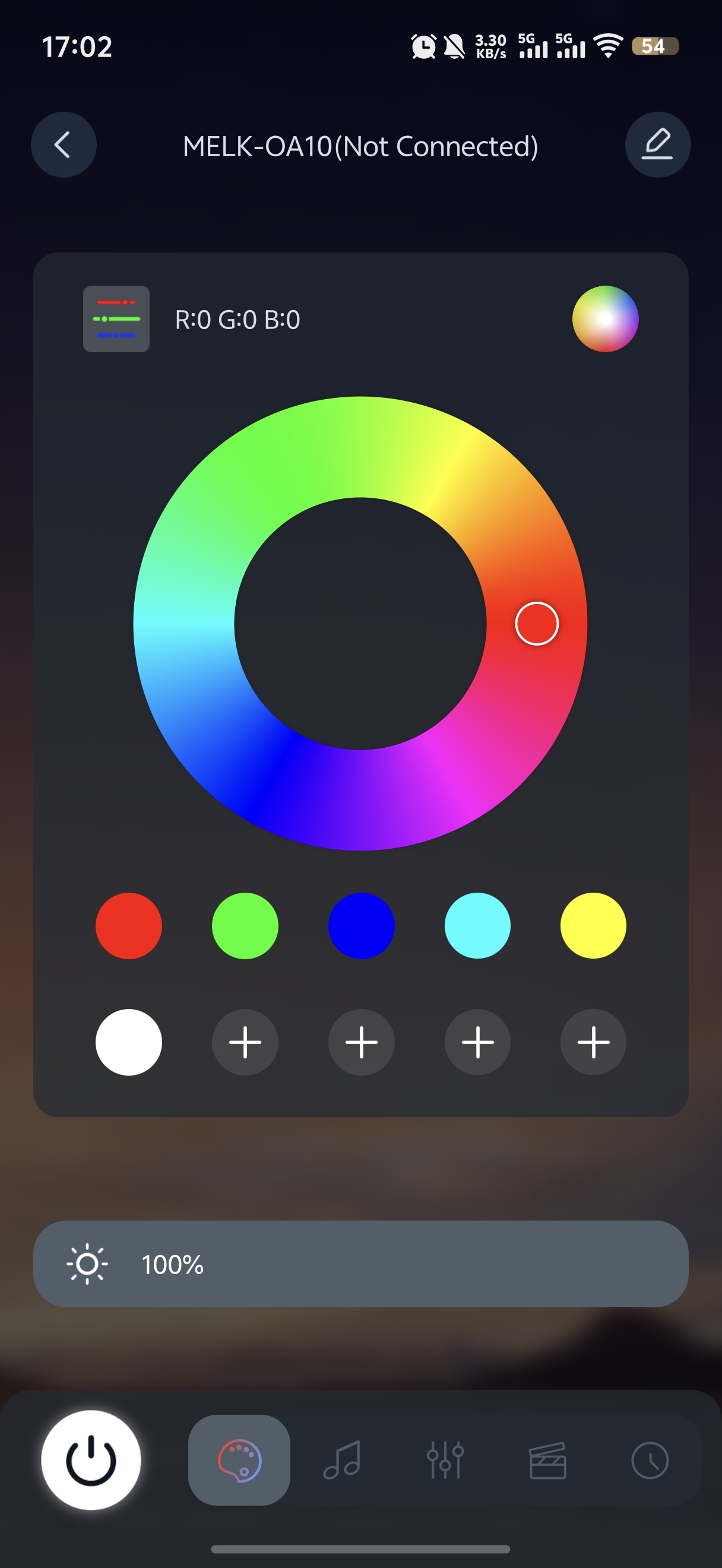
The colour panel opens from the palette icon in the bottom bar. It shows the current R, G and B values, the colour ring, five preset swatches plus white, four custom slots marked with a plus, and a brightness bar expressed as a percentage.
- Drag on the ring, or tap a swatch, to set a steady colour.
- Tap the R, G and B readout to enter a colour numerically. Two strips set to the same three numbers match; two set by eye rarely do.
- Select an empty custom slot and adjust the ring to save the current colour there. Long-press a saved colour to delete it.
- Move the brightness bar to set the output.
- Use the power button at the bottom left to switch the light on or off. A control that does not respond usually means the link icon on the device list shows disconnected.
Music and microphones
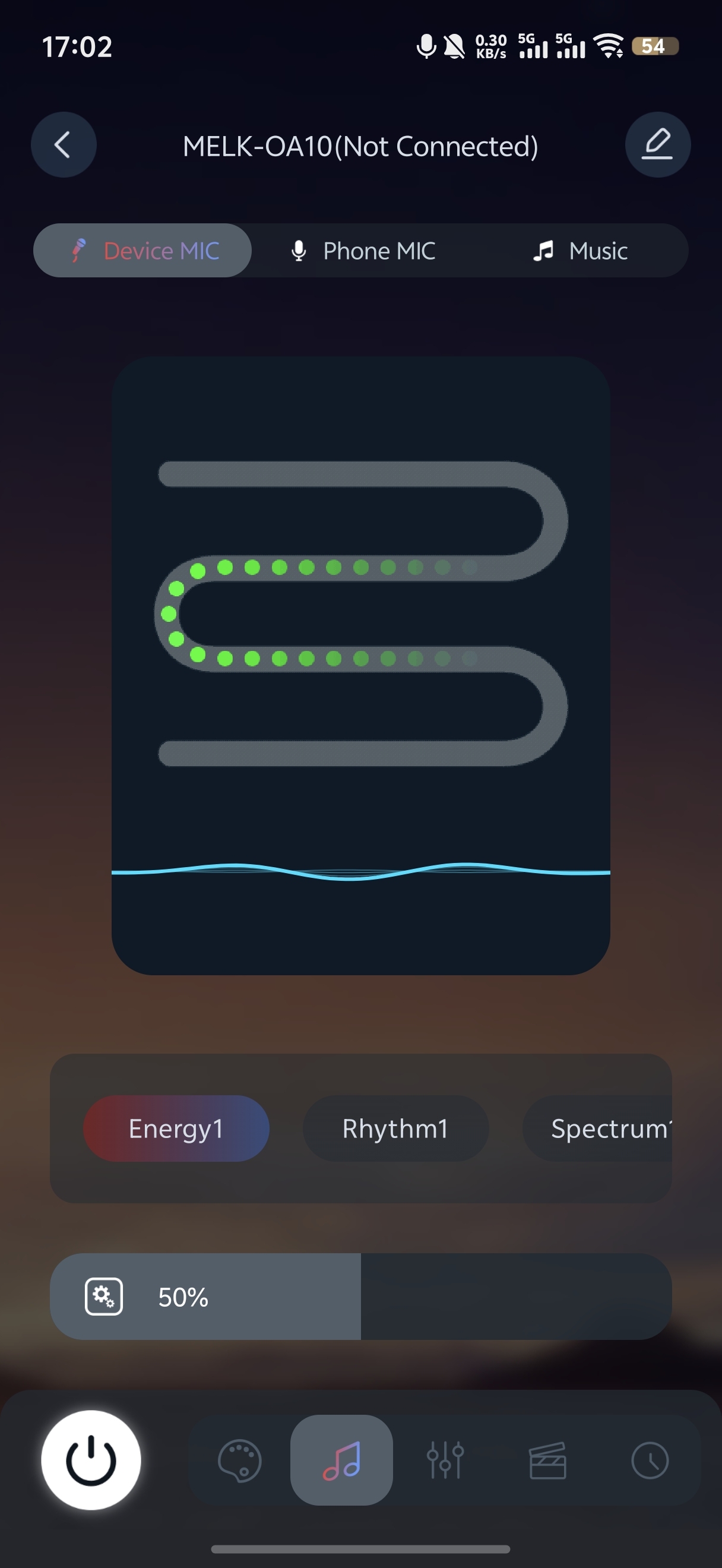
The rhythm screen opens from the music icon in the bottom bar and offers up to three sound sources, depending on the controller. The preview animates the strip, the trace under it shows the incoming sound, and the row of styles (Energy1, Rhythm1, Spectrum1 and more by swiping) sets how the light answers it.
- Device MIC: the microphone built into the controller. Once selected, a supported device keeps responding to sound with no app connection at all, which makes it the source for a light that has to run all evening while the phone leaves the room.
- Phone MIC: the phone's own microphone. The device must stay connected and the app must stay on the rhythm screen.
- Music: music played from the phone. The connection must stay active and the app must remain on the rhythm screen.
Tap a style to change it, and move the sensitivity bar (the capture shows 50%) to set how much sound is needed to drive a change. Device MIC requires a controller with a microphone fitted. The differences between the three sources are set out in music sync modes.
Dynamic modes
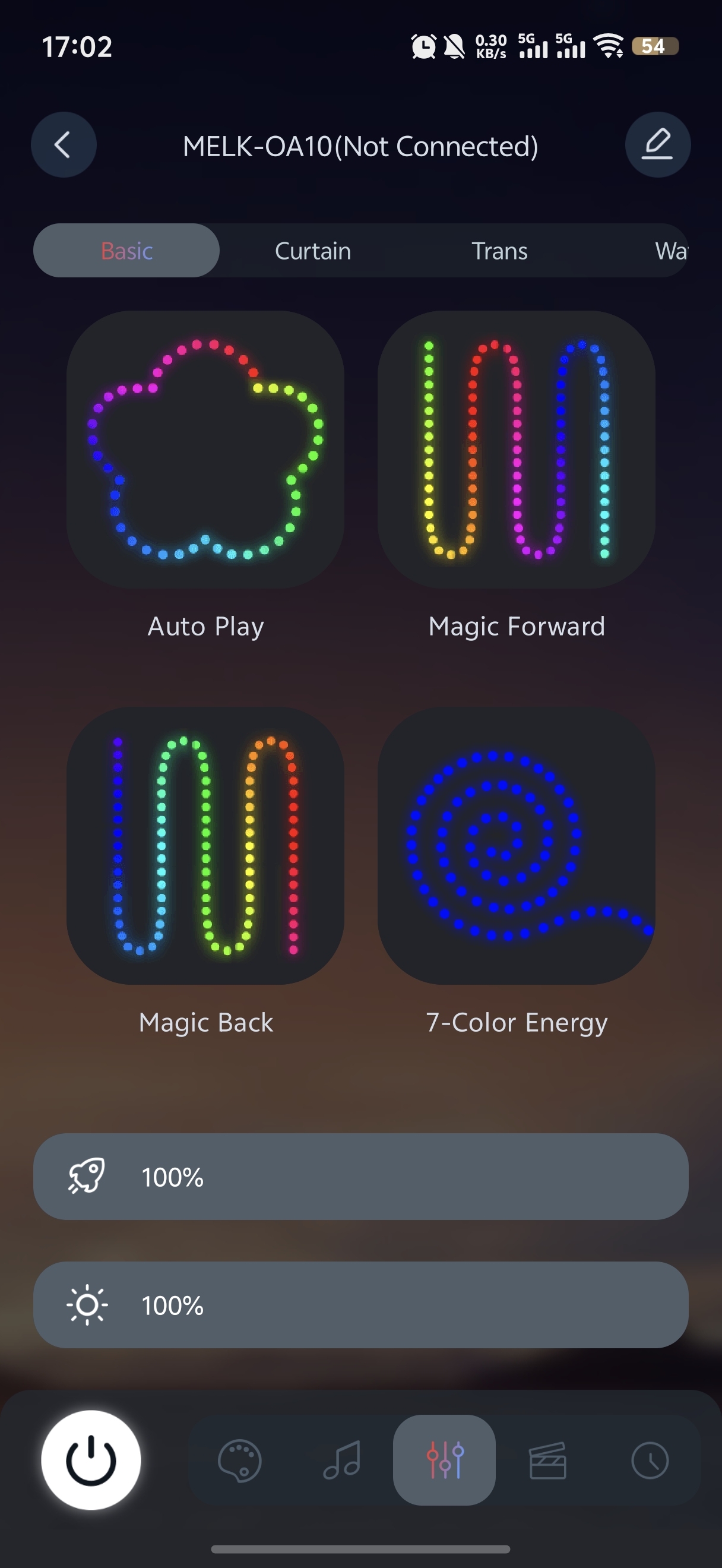
Dynamic modes combine preset colours with a changing pattern. They are sorted into category tabs (Basic, Curtain, Trans, Water and more) and shown as animated tiles: Auto Play, Magic Forward, Magic Back, 7-Color Energy and the rest. Mode Style in the device settings switches the tiles to a text list.
- Open the mode screen from the sliders icon in the bottom bar and choose a category tab.
- Tap a tile to run that effect.
- Move the speed bar (rocket icon) to change how quickly the pattern advances.
- Move the brightness bar to set the output.
Scenes
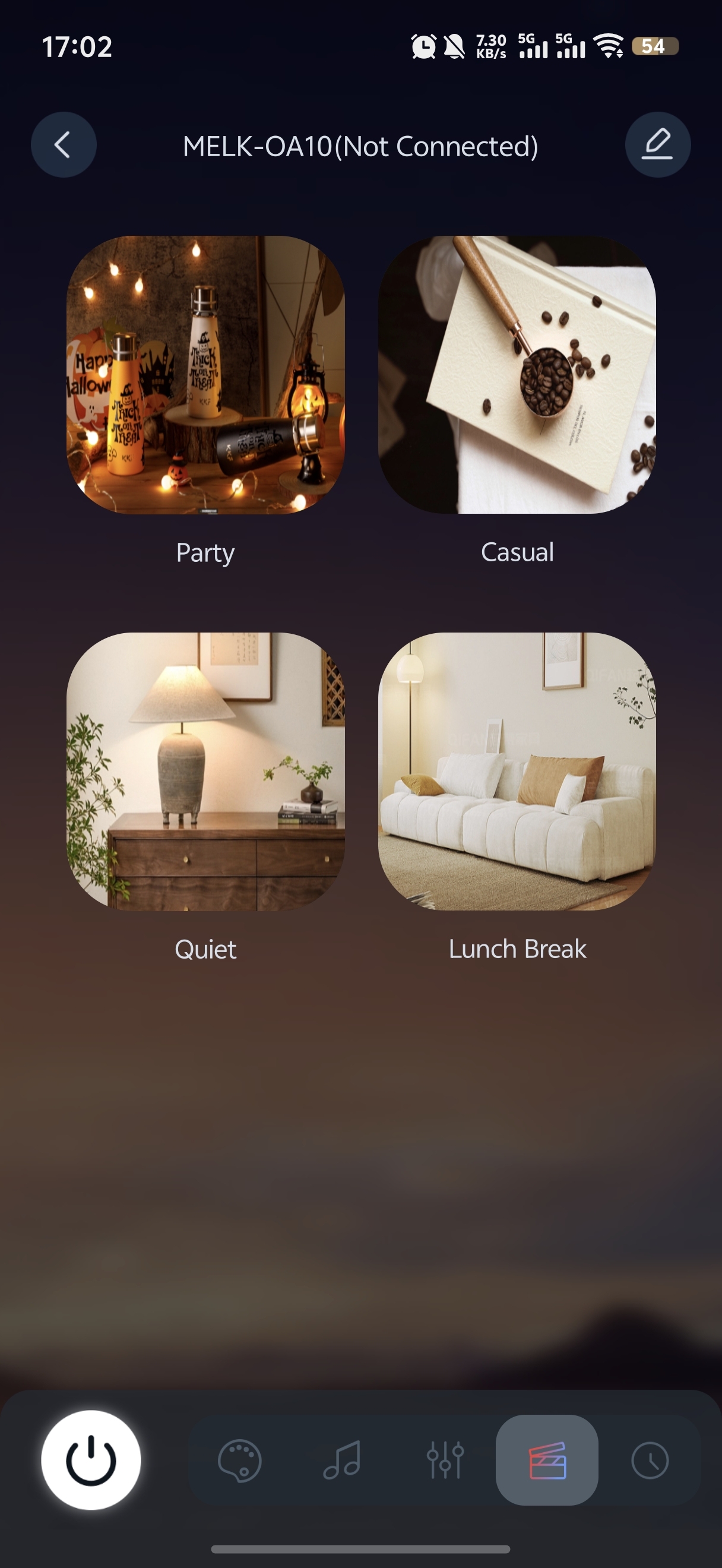
The scene screen opens from the clapperboard icon. Each scene is a stored combination of colour, brightness and pattern; selecting one applies the whole combination at once, so an evening setting does not have to be rebuilt from the colour panel every time.
Scheduled on and off
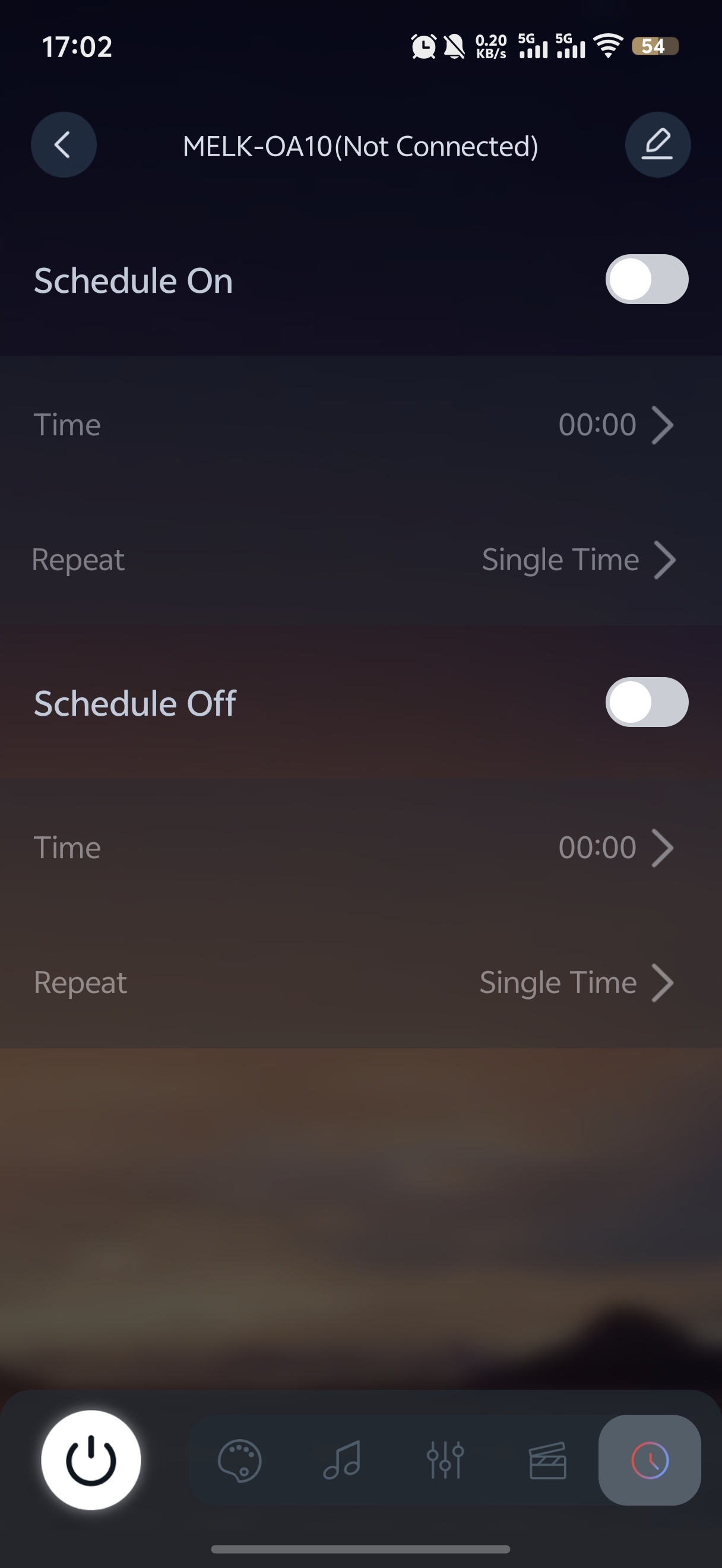
- Connect the device and open the schedule screen from the clock icon.
- Choose Schedule On or Schedule Off and set its Time.
- Set Repeat: Single Time, or the weekdays on which it should recur. More than one day can be selected.
- Enable the toggle for that schedule. The other schedule is configured separately.
The schedule is stored on the controller. The app reads the controller's timer settings when it connects and keeps no separate local copy, so the light switches on schedule whether or not the phone is in the house.
Device settings
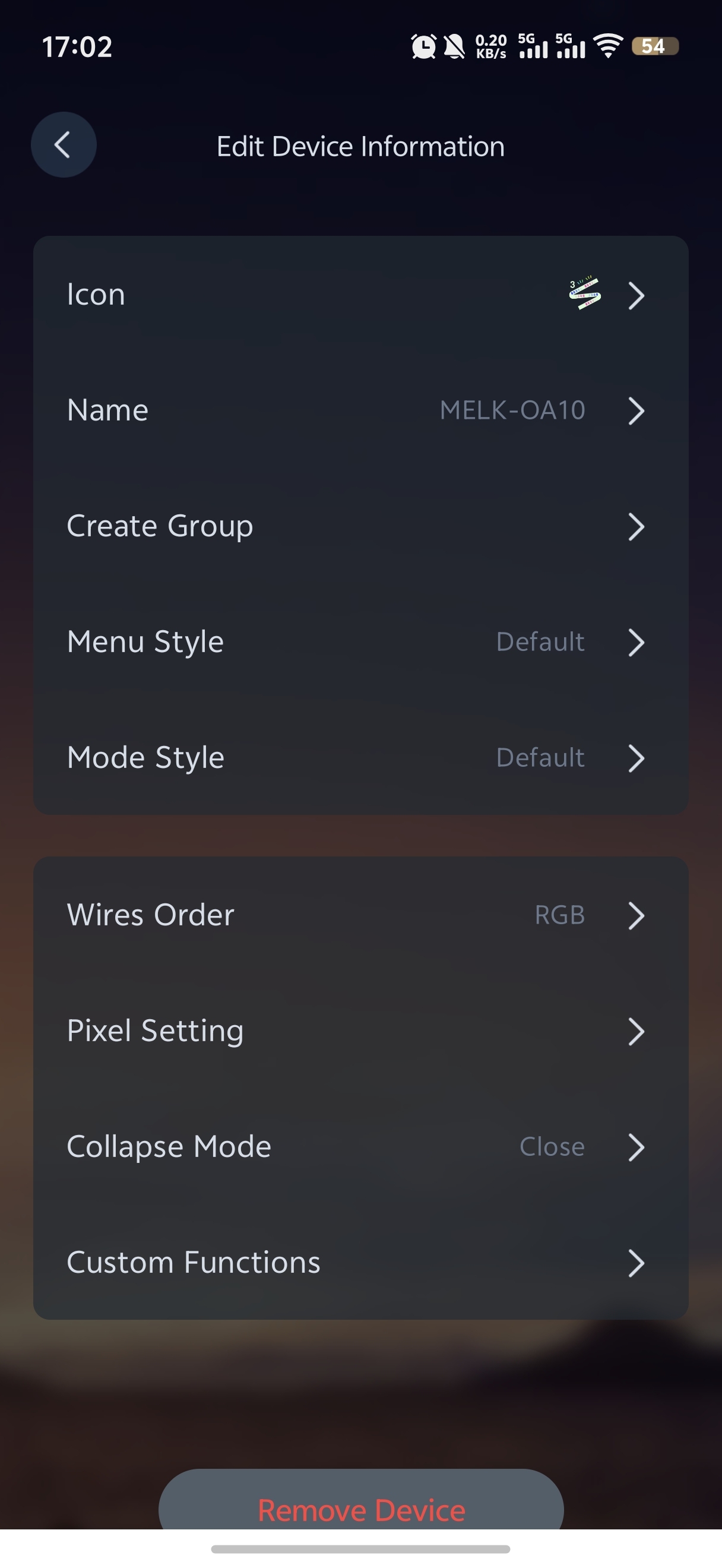
The pencil icon at the top right of any control screen opens Edit Device Information. The upper group changes how the device appears in the app; the lower group changes how the controller drives the strip.
- Icon and Name: make each device recognisable in a list of several.
- Create Group: put devices of the same type into a group for shared control.
- Menu Style and Mode Style: change the menu layout and choose animated tiles or a text list for modes.
- Wires Order: the channel order, shown as RGB by default. Change it when the colour chosen in the app is not the colour the strip shows; the fix is the same one described in wrong colours and line sequence.
- Pixel Setting: the number of LEDs the controller drives. Set too low, a moving effect stops part-way along the run; set too high, it appears to run off the end.
- Collapse Mode and Custom Functions: availability and meaning depend on the product. Follow the lighting device's own leaflet for these two.
- Remove Device: delete the entry from the device list.
App settings
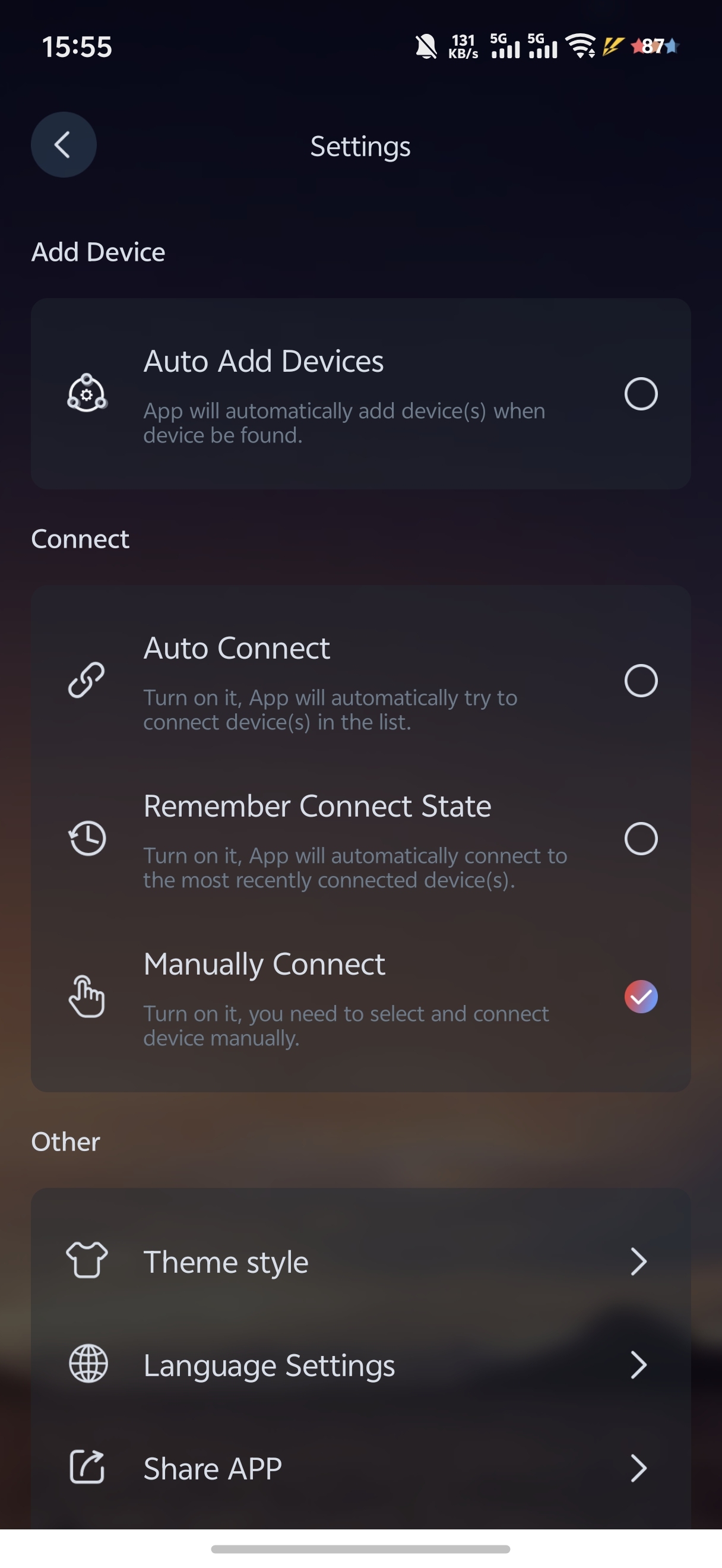
- Auto Add Devices: whether a newly discovered controller is added to My Devices without a manual step.
- Connect: one of three behaviours. Auto Connect links every device in the list; Remember Connect State reconnects the most recently connected devices; Manually Connect waits until a device is tapped. Manually Connect is the setting to keep while several phones share one light, since only one of them can hold the connection at a time.
- Theme style: the app background.
- Language Settings: the app follows the phone's language by default; another can be chosen here.
- Share APP, Feedback, Help Center, About: share the store listing, send feedback, open the help page or check the version.
Common problems
| Symptom | Cause | Fix |
|---|---|---|
| Device list stays empty, no error | Wrong app for the controller, or Bluetooth / nearby-devices permission denied | Confirm the app in which app controls your light; grant the permission in the phone's settings for the app, not inside the app |
| Light appears, then vanishes; or connects and drops within seconds | Another phone that paired before has reclaimed it, or the phone is too far for the first handshake | Close the app on the other phone; pair within a metre or two, then move away |
| Connects and brightness works, but colours are wrong | Channel order: strip and controller disagree about which wire is which | Wires Order in Edit Device Information; the setting is stored on the controller |
| Moving effect stops part-way along the strip, or runs off the end | Pixel Setting does not match the strip | Set Pixel Setting to the number of LEDs on the run |
| Rhythm stops as soon as the phone is locked or the app is left | Phone MIC and Music are processed on the phone | Use Device MIC on a controller that has a microphone; it runs without the app |
The permission location for each phone platform, the full failure table and the reset pattern are in pairing a light for the first time.
Privacy
LotusLamp X asks for Bluetooth permission to scan for controllers (on Android 6 to 11 the system routes that request through the location permission; the app does not read your position) and for microphone permission only when Phone MIC is selected; the Google Play data-safety section states that no data is shared with third parties. The privacy policy covers the website, and the store listings carry the app's own data-safety details.
Questions about a specific light of ours? Contact us.
Sources: Google Play listing, LotusLamp X; App Store listing, LotusLamp X.